Canvas Grade Submission tool pulls final grades from a Canvas course's Grades page (or 'Gradebook'), and submits them to the Grade Entry area for the course in Bear Cub Hub's Faculty Dashboard. With the transition to Bear Cub Hub and Banner, this replaces the prior tool from Faculty Portal, which allowed grades to be uploaded from a Canvas course.
Follow the guide below to set your course up to use the tool and submit final grades to Banner.
Important Notes
- This tool can only be accessed and used by faculty listed as an instructor of record for the course in the schedule of classes.
- If you need help using this tool in Canvas, please contact DEsupport@santarosa.edu
- For guidance on Incomplete grade types and information on issuing Incompletes to students, please contact Michelle Parrish with Admissions and Records: mparrish@santarosa.edu
How to Use Canvas Grade Submission tool
Step 1: Preparation
In course Settings, make sure a Grading Scheme is selected. If one is not already selected, choose the grading scheme called 'SRJC Default Grading Scheme', then click 'Update Course Details' to save your change.
In the course's Gradebook, check that all assigned Assignments, Discussions, and Quizzes have been graded for the course.
Step 2: Access and Use Canvas Grade Submission
When ready to submit final grades, click 'Canvas Grade Submission' in main course navigation (as shown above).
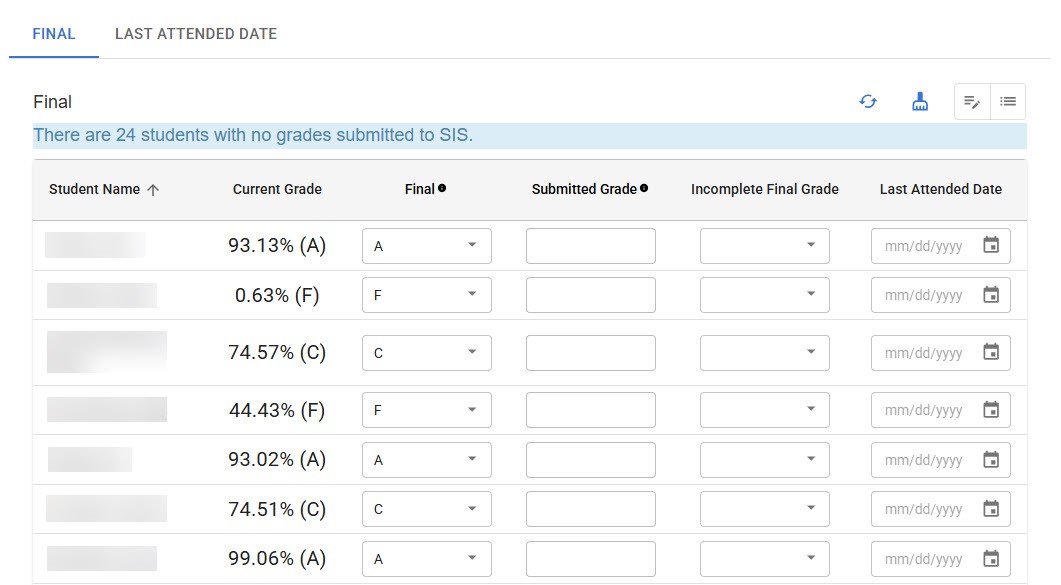
Canvas Grade Submission tool will open, showing a similar screen as below. This area includes the following:
- Student Name - Active students in the course
- Current Grade - Populated from Canvas Gradebook
- Final grade - Also populated from Gradebook, but editable via dropdown menu
- Options available to select: A, B, C, D, F, IB, IC, ID, INP, IPP, NP, P
- Submitted Grade - Once grades have been submitted to Banner, this field populates with successfully submitted grades
- Incomplete Final Grade - Only relevant for Incomplete grade submissions
- Last Attended Date - Only relevant for F and Incomplete grade submissions
Step 3: Enter Grades
Check your grades and make any needed changes.
- If submitting grades of A, B, C, D, only the Final grade field needs to be filled.
- If submitting an F grade, a Last Attended Date must be added before the grade submission will work.
- If submitting P, NP, or Incomplete grade types (IB, IC, ID, INP, IPP) for a student: In the student's row, click the dropdown menu under Final, and select the specific grade.
- For Incomplete grade types, Incomplete Final Grade field will populate automatically.
- If submitting an Incomplete grade type, Last Attended Date must be added before the grade submission will work.
- Last Activity Date: If your grade type requires a Last Attended Date, check the student's entry on the course's People page. This area lists 'Last Activity' date for all students in the course.
Step 4: Save and Submit Grades
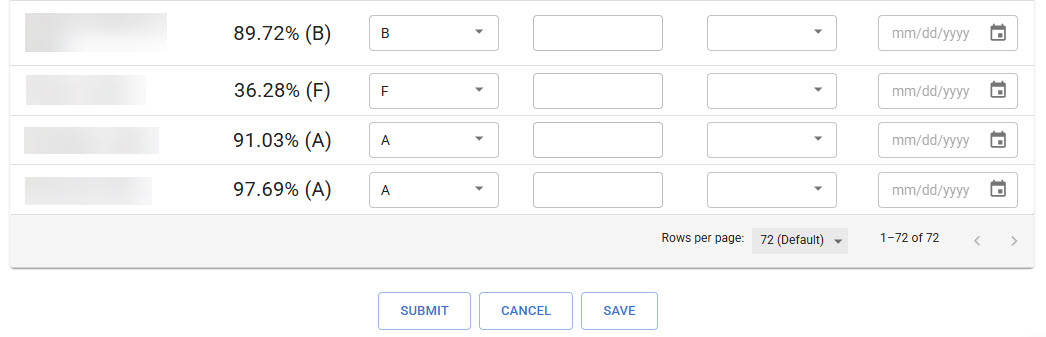
Scroll to the very bottom of the page. Save your changes first, then Submit final grades to Banner.
Note: After submitting grades, scroll back to the top of the page. If there were issues with any grade submissions, the tool will alert you in this area, and explain what needs to be changed to correct the issues.
Step 5: Verify in Bear Cub Hub
Check your work in Grade Entry area of Bear Cub Hub's Faculty Dashboard.
- Log into Bear Cub Hub, open your Faculty Dashboard, then click 'Grade Entry'.
- Find and select the course you just submitted grades for.
- In your course entry, verify that grades are now present. This confirms that you've successfully used the tool to submit final grades from Canvas to Banner!
