Canvas Cross-Listing is consolidating multiple sections of the same course into a single course shell for the faculty-member's convenience. At SRJC, the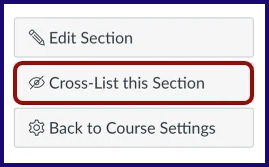 Canvas cross-listing tool is enabled from 2 weeks before the beginning of the regular semester through the end of the first week of the regular semester. Faculty can develop course content in the "parent" shell before this window.
The cross-listing dates are as follows for the 2026-27 academic year:
- Fall 26: August 3rd - 21st, 2026
- Spring 27: January 4th - 26th, 2027
- Summer 27: May 31st - June 21st, 2027
Important Considerations
 Cross-list before publishing a course and before students submit work. Cross-listed courses can be de-cross-listed, but student work and grades in the 'child' section may be lost.
Cross-listing is done in the 'child' course. Child course is the course you open to begin the process, and where the actual cross-listing is performed. Parent course is the destination course where sections and enrollments will be moved to.
Cross-listed sections retain the name of the 'parent' course. It is not possible to change this name, so making a note of this on your course homepage and in early messaging to students is recommended.
Cross-listing can be performed for different courses you're teaching. Example: ART14B and ART14C (child courses) can be cross-listed into ART14A (parent).
Maintain FERPA compliance by separating Canvas discussions and announcements as well as 3rd-party tools by section, or adding a statement to the syllabus informing students their names and coursework may be visible to students in another section. See the tips below on Managing Your Cross-Listed Canvas Course.
If your cross-listing need is complex and you'd like support, please email DEsupport@santarosa.edu
How to Cross-List
Step 1: Preparation
Determine which of your course sections will be the parent shell. The parent shell is the Canvas course section where you will develop and deliver content for all cross-listed course sections.
Step 2: Follow Canvas's Instructions
Follow Canvas's step-by-step instructions or review the tutorial video below.
Managing Your Cross-Listed Canvas Course
Separate Discussions by Section
- If Discussions are used in the course, students of all sections are included unless assigned separately or Student Groups are used.
- For Graded Discussions by section
Assign Due Dates by Section
Use the following instructions if you have cross-listed sections that have different meeting days, and hence different schedules of due dates.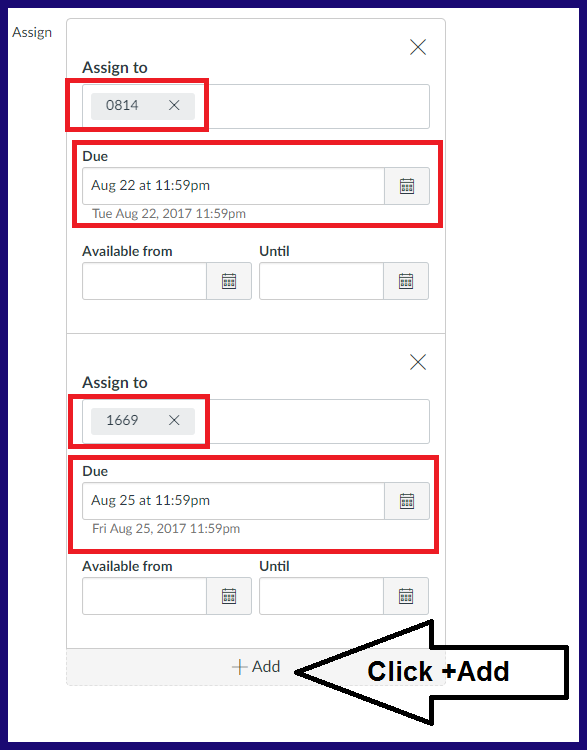
- When editing an Assignment, scroll down to the Assign section.
- Under Assign to, click in the field to reveal a drop down navigation to select a specific section to set due dates for.
- Use the +Add button at the bottom of the Assign area to add due dates for a different section.
- See the "How do I assign an Assignment to an individual student or course section?" Canvas guide (Also see the screenshot below.)
- Assignments and Quizzes can be set up with different due dates and access settings. Students will see only the dates for the section they are enrolled in. The screenshot to the right shows an Assignment from the instructor's view with different section due dates.
Separate Announcement Posting if Commenting is Enabled
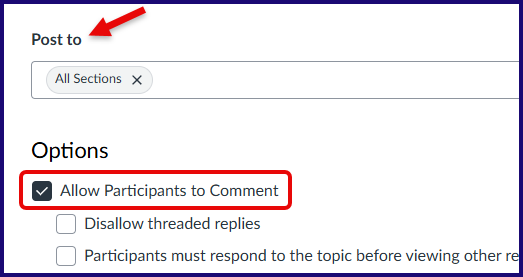 If you want to post announcements with student commenting enabled, post the announcement to different sections separately. Under your announcement message, us the drop down to select which section to post to.
Additional Support
If you need additional help or have cross-listing questions, contact DEsuppport@santarosa.edu
