Description of Issue
Every image needs to have a description added via a setting in Canvas or Word so that blind and low vision students can access the necessary content in the image.
Helpful Video
Adding ALTERNATIVE TEXT in Canvas
In the Canvas system, you place images on pages using the Rich Content Editor Embed Image tool (mountain scene).
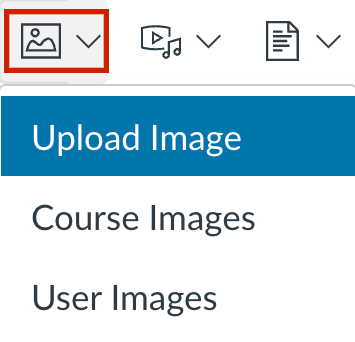
Upload an image
Click on the Embed Image tool or clicking on the arrow next to it and choosing Upload Image or input a URL to embed the image on the page. You will be presented with an Upload Image dialog box that contains an Alt text field for placing alternative text. Type into the field a short, descriptive phrase about the image, or click on Decorative Image.
Place image from Course Files or add Alternative text after an image is placed on page
When you choose to place an image already loaded into your Canvas course files, or you want to add alternative text later, move your cursor over the image in Edit mode and click on the Image Options button. In the interface that opens on the right of the screen, input the description for the image in the Alt Text field, or choose Decorative image.
DECORATIVE IMAGES
If the image is purely decorative and does not convey meaning, it is best to indicate empty alternative text, thereby signifying to the screen reader that the image should be ignored. In Canvas and Word, there is the option to check on the Decorative Image option.
Writing Good Alternative Text
Do not include "image of" or "picture of" in the Alt text, just the description. If there is text in the image, be sure to include it in the Alt text. See this page on writing effective alternative text from the WebAIM site.
