Description
TidyUP helps you tidy your Canvas course: it enables you to identify and remove un-used or duplicated content and organize the content you want to keep. TidyUP is integrated into Canvas and scans the entire course, providing a centralized view of files and Canvas materials and making it easy to sort, filter, search, and take action confidently.
Take the TidyUP Tic-Tac-Toe Challenge!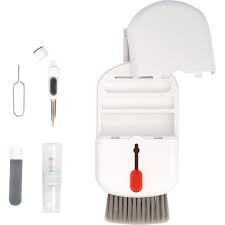
DE is running a fall TidyUP challenge to encourage you to get in there and clean up your course!
Check out the Tic-Tac-Toe grid to see the different TidyUP tasks, then follow the playing instructions for a chance to win a 10-in-1 keyboard and tech cleaning tool.
Submit the Entry Form by November 25th to be entered in the raffle for our prize.
How to Use
Step 1: Activate the TidyUP tool by adding it to Canvas navigation
- TidyUP is already installed in Canvas.
- You can locate a link to TidyUP in the course navigation on the left of your course dashboard.
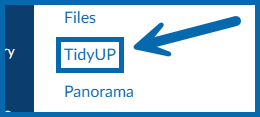
- This link will not be seen by students.
Step 2: Run a scan!
To scan your content:
- Select TidyUP from your Canvas Course Navigation.
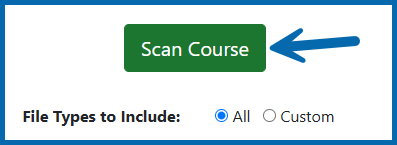
- Select the Scan Course button to get started! You can choose to scan all file types, or limit the scan to selected types by using the custom option.
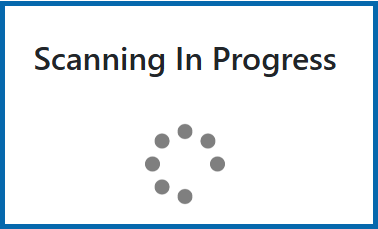
- Your scan is now in progress. Depending on how much content you have in your course, this may take anywhere from a few seconds to a few minutes.
- As soon as the scan is finished, you will see some tabs where you can view all of the files, folders, and Canvas content in your course.
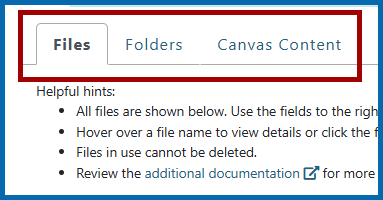
Files:
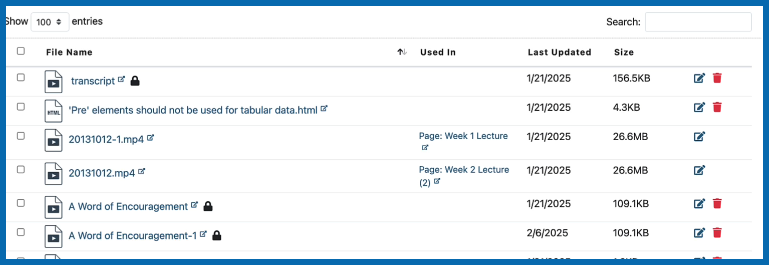
Step 3: De-clutter Your Course
Once the scan is complete, you will be able to TidyUp your Files, Folders, and Canvas Content.
- How toTidyUP Files & Folders (10.5 min)
- How to TidyUP Canvas Content (6 min)
Important!
 While TidyUp will not allow the deletion of files that are currently in use, Canvas limits what TidyUP can scan in your course, and as such, cannot identify whether files are in use in Question Banks, Discussion posts/replies, Canvas Events, SpeedGrader comments, or via 3rd-party tools (such as Hypothesis). Make these files easier to recognize by:
- Adding a standard naming convention to the beginning of the file name (such as QB for question bank files).
- Creating an unpublished page in your course and embedding any non-standard files so TidyUP can recognize them as "in use."
- Creating a Protected Files folder to store these files. Then, use TidyUP's "Ignore Folder" feature to ensure TidyUP does not scan that folder, keeping your files safe.
More TidyUP Resources
Support
Book a One-on-One Meeting with a Distance Education Team Member.
